Flights
Upload DJI flight data to CanIFly
CanIFly does not pull flights from the DJI cloud. Export the encrypted FlightRecord files from DJI Fly on your phone, then upload them on your account page. We decode them on the server and sync tracks to your profile and map.
What you need
- · A DJI Fly (or compatible) flight history already on the phone
- · The Files app (iPhone) or Files / My Files (Android)
- · A CanIFly account signed in on the same phone or a desktop
iPhone / iPad
Safari cannot open the hidden DJI folder by URL. Use the Files app, then share or pick files into CanIFly.
- 1
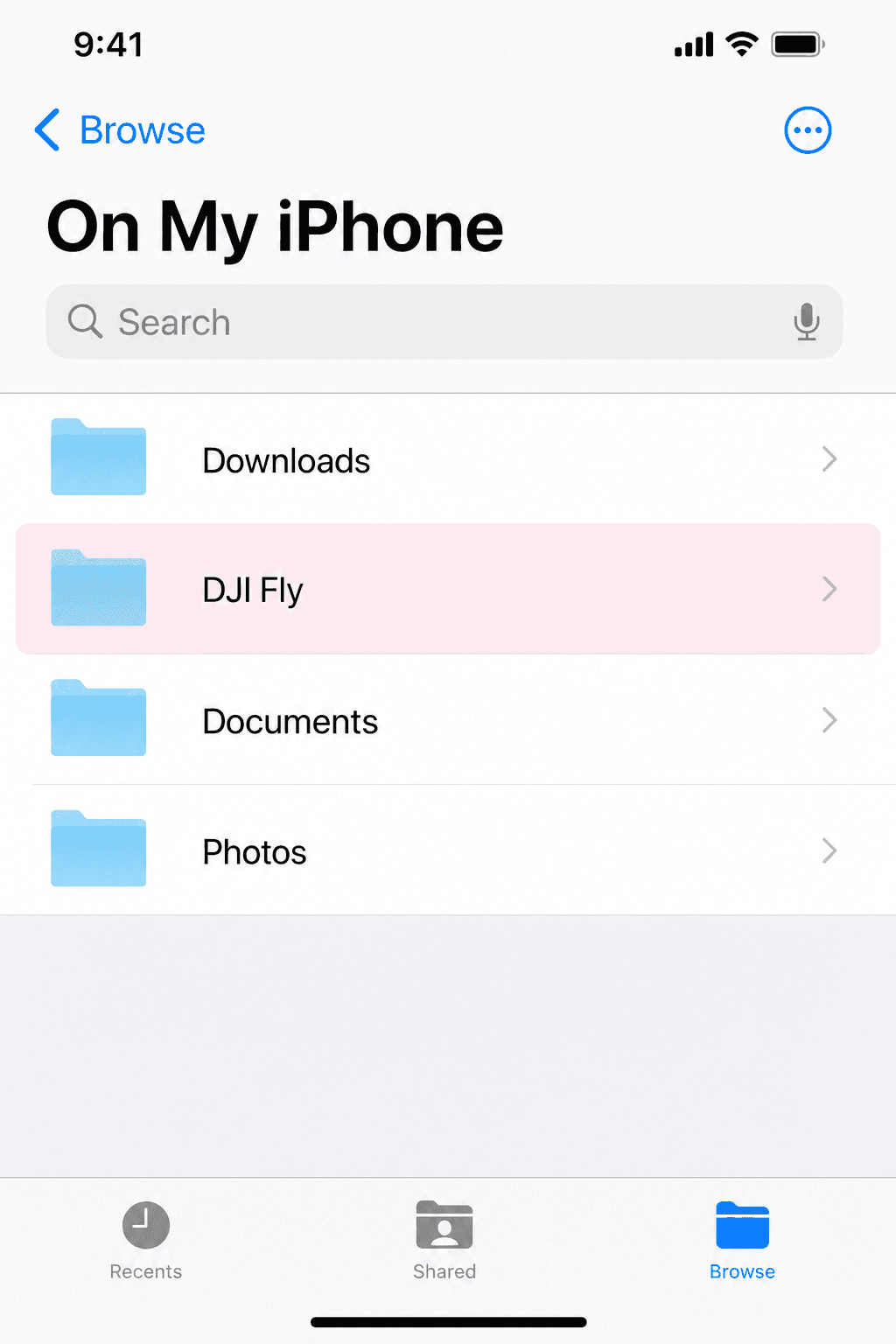
Open Files → Browse → On My iPhone
Launch Apple Files. Under Browse, open On My iPhone (not iCloud Drive).
- 2
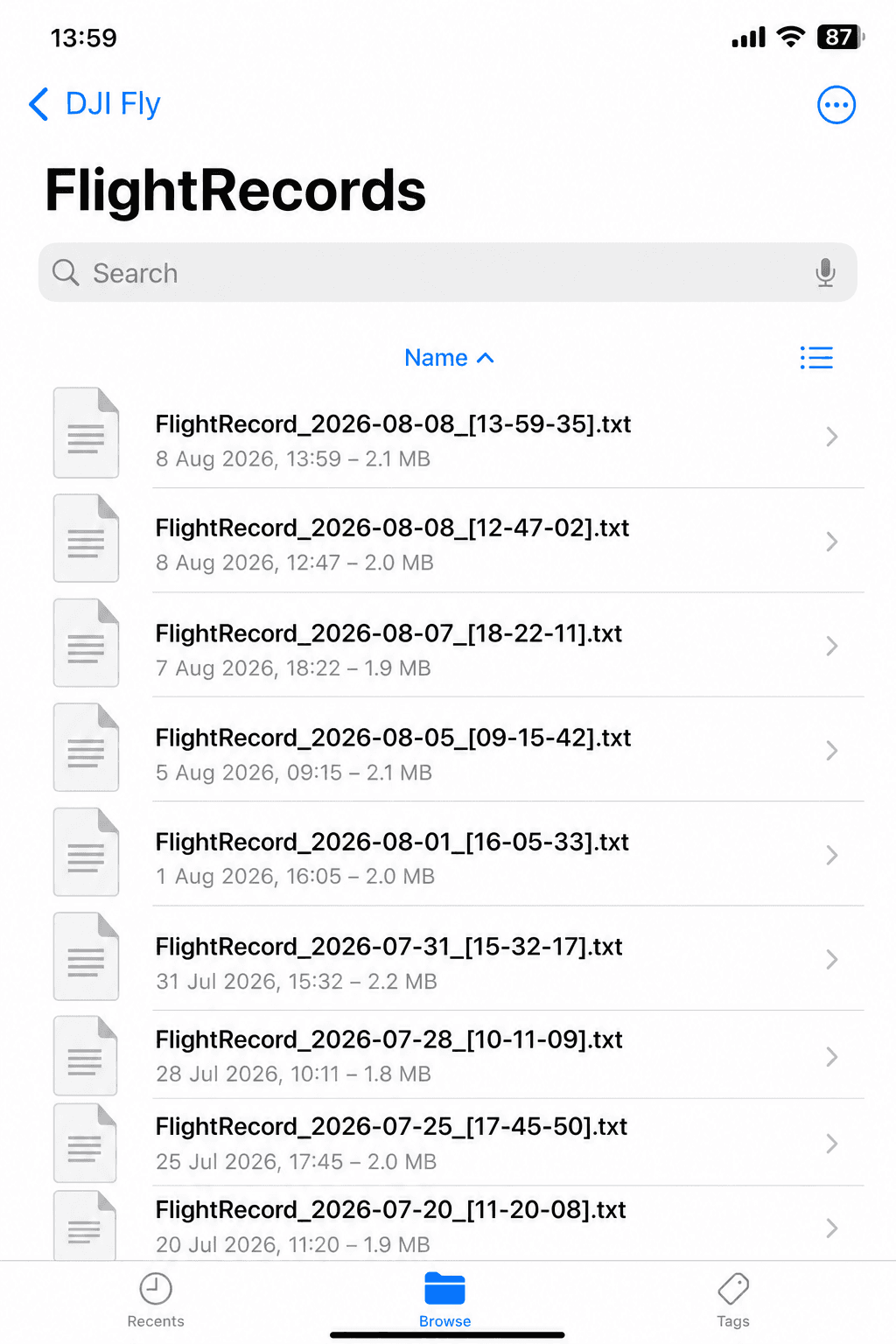
Open DJI Fly → FlightRecords
Tap DJI Fly, then FlightRecords. You should see FlightRecord_YYYY-MM-DD_[HH-MM-SS].txt files.
- 3
Select the flights to sync
Long-press to multi-select, or zip the folder in Files (Share → Compress) if you prefer one upload.
- 4
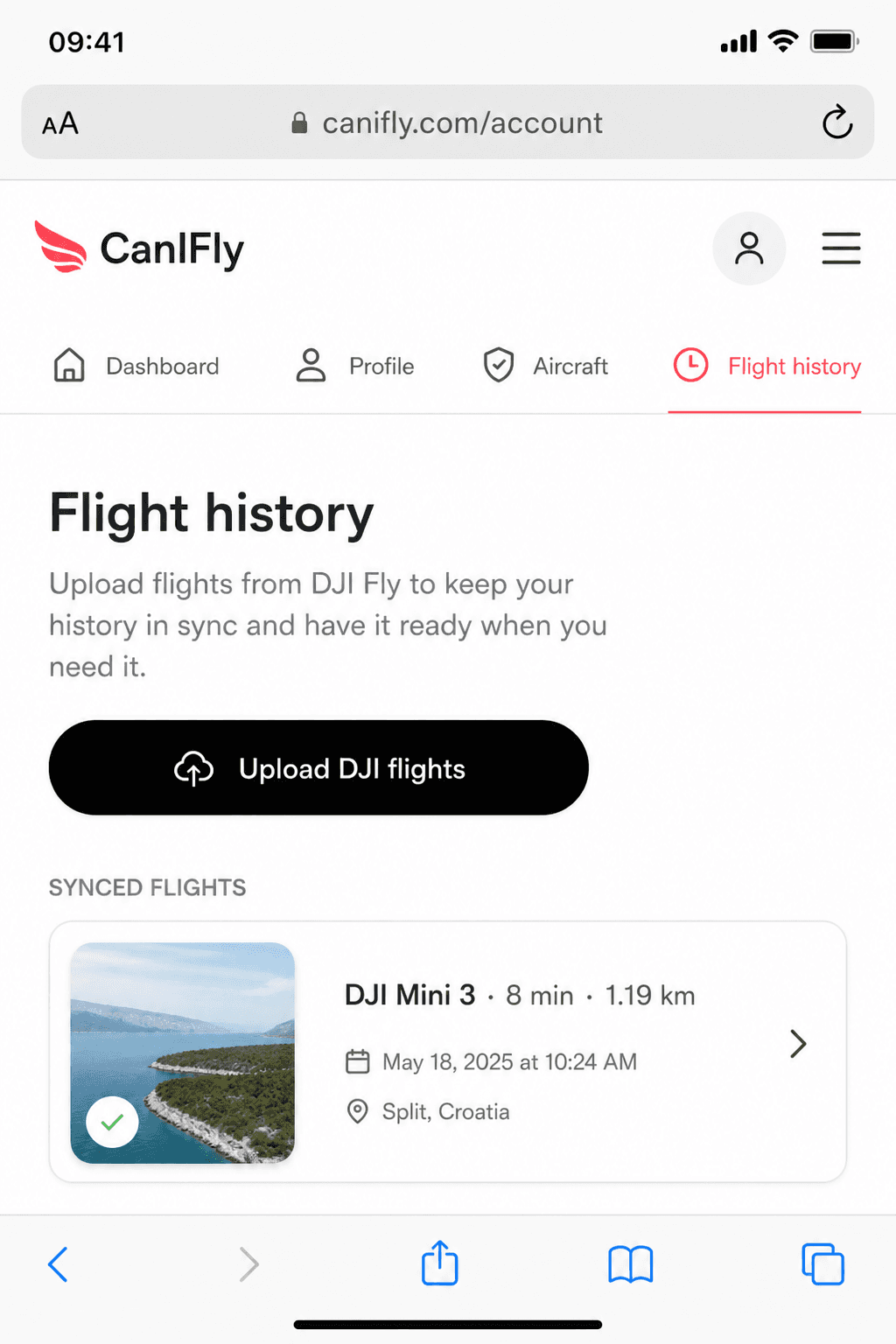
Upload in CanIFly
Open Upload DJI flights on your account, choose the .txt files or the zip. Stay on Wi‑Fi for large batches.
Finish on CanIFly
- 1
Sign in
Use the same account that should own the flights on your public profile.
- 2
Upload DJI flights
Open Upload DJI flights, then pick .txt FlightRecord files or a zip. Re-uploading the same file refreshes stats and tracks.
- 3
See tracks on the map
Turn Flights on in the map controls. Paths color by altitude; open a track for duration, distance, and aircraft.
Tips
- · Apple Sign-In / Hide My Email does not give a DJI password for third-party cloud sync — local FlightRecords are the reliable path.
- · Tracks need server decryption (DJI Open API key on CanIFly). Metadata still syncs without a full GPS path.
- · After a flight, wait until DJI Fly finishes writing the log before copying files.
- · Already synced flights are skipped or refreshed — safe to upload the whole folder again.